
Factory reset Tuya device explained — when and how to do it properly
Factory reset is one of the most powerful troubleshooting actions in the Tuya ecosystem. It can fix connection problems, pairing errors, and unstable behavior — but it is also one of the most misunderstood steps.
Many users reset their Tuya devices too early or incorrectly, which leads to more problems instead of solving them. In this guide, you will learn exactly what factory reset does, when you should use it, and how to perform it properly on different types of Tuya devices.
What is a factory reset in Tuya devices
A factory reset returns the device to its original state, just like when you first bought it.
This means:
- all Wi-Fi or Zigbee settings are removed
- device is disconnected from your account
- automations and scenes are deleted
- all previous configurations are lost
After reset, the device must be added again as a new device.
When you should do a factory reset
Reset should not be your first step. It should be used only when other methods fail.
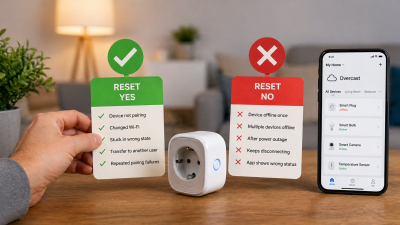
Use factory reset in these cases:
- device cannot connect to Wi-Fi or hub
- device is not pairing at all
- device is stuck offline permanently
- you changed Wi-Fi network
- you want to transfer device to another user
If your issue is temporary (for example after power outage), try restart first.
When you should NOT reset
Do not reset your Tuya device if:
- the issue happened only once
- the router was just restarted
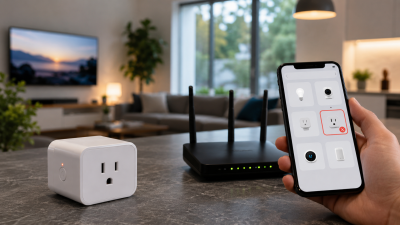
- Wi-Fi is unstable
- multiple devices are offline at the same time
In these cases, the problem is likely your network, not the device.
Quick answer
Factory reset usually works like this:
- press and hold reset button for 5–10 seconds
- wait until LED starts blinking
- release button
- add device again in Tuya or Smart Life app
However, the exact method depends on the device type.
Factory reset methods by device type
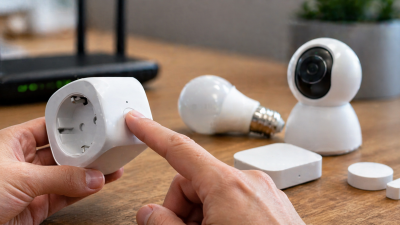
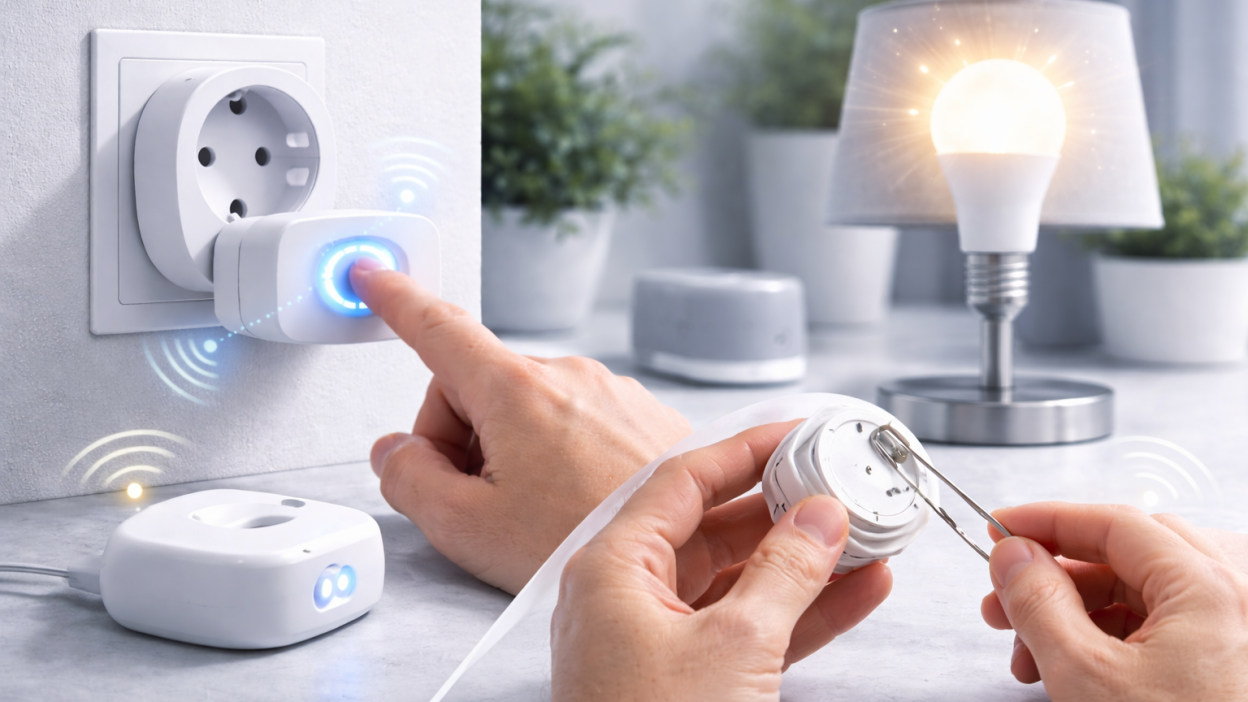
Wi-Fi smart plugs and switches
- hold button for 5–10 seconds
- wait for fast blinking LED
Smart bulbs
- turn ON/OFF 3–5 times
- wait for blinking light
Zigbee devices
- hold reset button or pin for 5–10 seconds
- re-pair device with hub
Sensors (motion, door, temperature)
- use small reset button (often inside hole)
- hold with pin for several seconds
Step-by-step: how to reset properly
Step 1. Confirm reset is needed
Before resetting, check:
- Wi-Fi is working
- router is stable
- device has power
If everything is fine and device still fails — proceed.
Step 2. Activate reset mode
Use the correct method for your device (button or power cycle).
Watch for blinking LED — this is critical.
Step 3. Wait for pairing mode
Fast blinking usually means the device is ready for pairing.
Slow blinking may indicate AP mode.
Step 4. Add device again
Open Tuya Smart or Smart Life app and add the device as new.
Make sure:
- you are on 2.4 GHz Wi-Fi
- password is correct
Common mistakes
Resetting too often
This wastes time and does not solve network issues.
Ignoring Wi-Fi problems
If Wi-Fi is unstable, reset will not help long-term.
Using wrong reset method
Different devices require different reset actions.
Not waiting for blinking signal
No blinking = no reset.
Real-world scenarios
Device works after reset but fails again
This is a network problem, not device problem.
Device not detected after reset
Usually caused by wrong Wi-Fi band or pairing mode.
Device never enters reset mode
This may indicate hardware failure.
Factory reset vs restart
Many users confuse reset and restart.
- Restart — temporary reboot, keeps settings
- Reset — full wipe, removes all data
Always try restart first.
FAQ
Does factory reset delete everything?
Yes, including Wi-Fi settings and automations.
How long should I hold reset button?
Usually 5–10 seconds depending on device.
Do I need to delete device from app?
Recommended if reconnecting fails.
Why does reset not fix the issue?
Because the real problem is often network-related.
Conclusion
Factory reset is a powerful tool, but it should be used correctly. It solves pairing and configuration problems, but it does not fix weak Wi-Fi, router issues, or bad device placement.
The best approach is simple: first check your network, then use reset only when necessary. This will save time and keep your Tuya smart home stable.
You may also like: How to reset Tuya smart plug, How to reset Tuya smart bulb, Tuya device offline fixes, Tuya device not pairing guide.