
Smart Life App Shows Device Offline But Device Works: What to Do
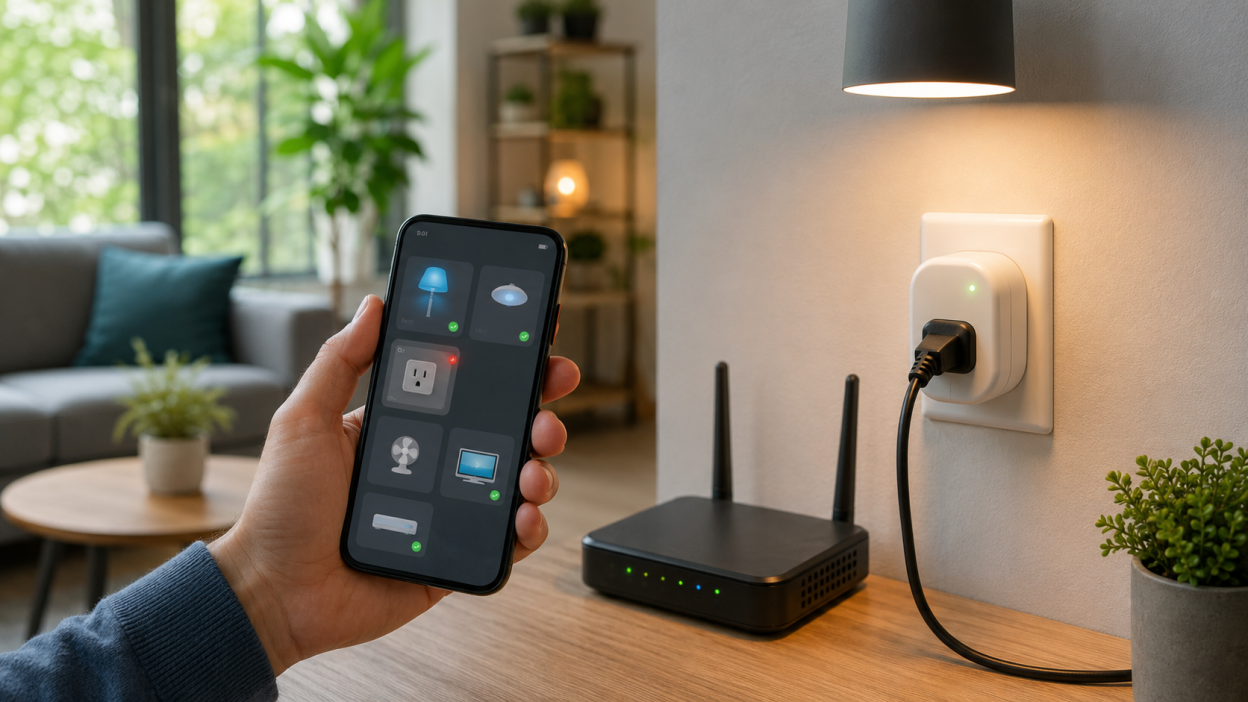
Your smart plug still turns on manually. Your bulb lights up from the wall switch. Your sensor may still react physically. But in the Smart Life app, the device shows as offline.
This situation is annoying because the device is clearly not dead. It has power, and in some cases it even works locally. The real problem is usually not the device itself, but the connection between the device, your router, the Smart Life app, and the Tuya cloud.
In this guide, we will explain why Smart Life can show a device as offline even when it still works, how to diagnose the issue, and what to do before deleting or resetting the device.
Quick answer
If Smart Life shows a device offline but the device still works, the most likely causes are app sync delay, weak 2.4 GHz Wi-Fi, router restrictions, failed cloud communication, or the device working manually without being connected online.
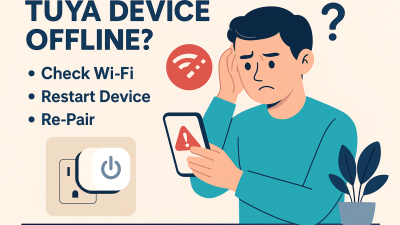
Do not remove the device from the app immediately. First, refresh the app, restart the device, check Wi-Fi signal, and confirm whether other devices are also affected.
Why a device can work but still show offline
A smart home device has two separate states:
- physical state — the device has power and can work manually
- online state — the device can communicate with the app through the network
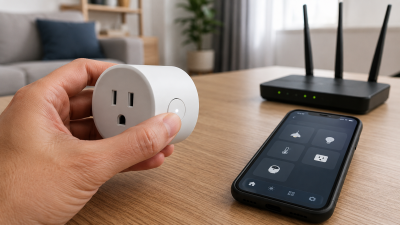
For example, a smart plug can turn on with its physical button even if it is offline in Smart Life. A smart bulb can still light up from a wall switch even if the app cannot control it. A wall switch can work manually even if cloud control is unavailable.
This is why “the device works” does not always mean “the device is online”.
Quick diagnosis table
| What happens | Most likely cause | What to check first |
|---|---|---|
| Device works manually but app says offline | Network or cloud communication issue | Restart device and refresh app |
| Only one device is offline | Weak signal or device sync issue | Move device closer to router |
| Several devices are offline | Router, internet, or Smart Life cloud issue | Restart router and wait |
| Device went offline after power outage | Failed reconnection | Restart device after router is online |
| Device is offline after Wi-Fi change | Old Wi-Fi credentials | Reset and re-add device |
Reason 1: Smart Life app status is not updated
Sometimes the device reconnects, but the Smart Life app still shows the old offline status. This can happen because of app cache, slow cloud sync, or temporary status delay.
Try this first:
- close the Smart Life app completely
- open it again
- pull down to refresh the device list
- turn mobile data off and on
- check the device from another phone if possible
If the device status changes after refresh, the problem was not the device. It was delayed app synchronization.
Reason 2: the device works locally but lost Wi-Fi
Many Smart Life devices can still work manually even if they are disconnected from Wi-Fi. This is especially common with smart plugs, smart switches, and bulbs.
The device may have power, but it may no longer be connected to the 2.4 GHz Wi-Fi network.
Common signs:
- physical button works
- app control does not work
- device status stays offline
- automation does not trigger
- voice assistants cannot control it
In this case, check Wi-Fi signal strength near the device.
Reason 3: router is blocking or dropping the device
Your router can work normally for phones, laptops, and TVs while still causing problems for smart home devices. IoT devices are often more sensitive to router settings.
Router features that may break Smart Life devices:
- AP isolation
- guest network isolation
- MAC filtering
- automatic device blocking
- strict firewall settings
- unstable band steering between 2.4 GHz and 5 GHz
If more than one Smart Life device shows offline, check the router before resetting devices individually.
Reason 4: the device failed to reconnect after a router restart
After a router reboot or power outage, your router and smart devices may restart in the wrong order. The device may try to reconnect before Wi-Fi is fully available.
If that first reconnection fails, the device may stay offline in Smart Life until you restart it manually.
The better recovery order is:
- wait until the router is fully online
- restart the affected smart device
- wait 60–90 seconds
- refresh the Smart Life app
This simple sequence often fixes the issue without removing the device.
Reason 5: Smart Life cloud has a temporary issue
Smart Life depends on cloud communication for many devices. If the device, router, and internet are working, but the app still shows offline, the issue may be temporary cloud sync delay.
This is more likely if:
- several devices go offline at the same time
- devices are from different rooms
- your router and internet work normally
- the problem appears suddenly without any setting changes
In this case, wait 10–20 minutes before changing anything. Resetting devices during a cloud delay can create more work without solving the real problem.
Real-life scenario
Imagine your smart switch still turns the light on manually, but Smart Life says the switch is offline. Alexa or Google Home also cannot control it.
This usually means the physical switch is fine, but remote control is broken. The problem is probably Wi-Fi, router connection, app sync, or cloud communication. The right move is to diagnose the connection first, not replace the switch.
What to do first
Follow this order:
- Close and reopen the Smart Life app
- Refresh the device list
- Restart the affected device
- Check if other devices are offline
- Restart the router if several devices are affected
- Check 2.4 GHz Wi-Fi coverage
- Only then consider reset or re-adding
This order helps you avoid unnecessary resets.
What not to do
Do not delete the device from Smart Life immediately. If the issue is only app sync or router reconnection, removing the device will force you to set it up again for no reason.
Also avoid resetting multiple devices at once. If many devices are offline, the problem is probably not each device individually. It is more likely your router, Wi-Fi, or temporary platform sync.
When you should reset the device
Reset is reasonable only if:
- the device does not reconnect after restart
- you changed Wi-Fi name or password
- you replaced the router
- the device cannot be controlled in any way
- the device remains offline for a long time after all checks
If the device still works manually and the network was recently unstable, restart and reconnect first.
How to prevent this issue
- use a stable router
- keep smart devices within good 2.4 GHz Wi-Fi range
- avoid isolated guest networks for smart devices
- do not change Wi-Fi name or password too often
- restart devices after long power outages if they fail to reconnect
- use Zigbee devices for larger smart home setups
FAQ
Why does Smart Life show offline if the device works?
Because the device may still work manually while losing connection to Wi-Fi, the app, or the cloud.
Should I delete the device from Smart Life?
Not immediately. First refresh the app, restart the device, and check your router. Delete and re-add only if basic fixes fail.
Can a smart plug work manually while offline?
Yes. The physical button can still work even when app control is unavailable.
Why are several Smart Life devices offline at once?
This usually points to router, internet, or cloud sync issues rather than individual device failure.
Is this a Smart Life problem or a Tuya problem?
Smart Life and Tuya are closely connected. For most users, troubleshooting is the same: check app sync, Wi-Fi, router, and device reconnection.
You may also like
- Tuya Device Offline But Internet Works: What It Really Means
- Tuya Smart Plug Has Power But Shows Offline: Real Fixes
- Router Settings That Break Tuya Smart Devices
- Tuya Devices Keep Disconnecting? Your Wi-Fi Setup May Be the Problem