
If your Tuya smart plug is not responding, not connecting to Wi-Fi, or showing as offline in the app, a reset is often the fastest way to fix the problem.
However, many users reset the device incorrectly or do it when it is not actually needed. In this guide, you will learn when you should reset your Tuya smart plug, how to do it properly, and what to do after the reset.
When you should reset a Tuya smart plug
Reset is not always required. You should reset your device only in specific situations.
- device is offline and cannot reconnect
- device is not pairing with the app
- Wi-Fi settings were changed
- device behaves incorrectly
- you want to connect it to a new network
If your device simply disconnected once, try restarting it before doing a full reset.
What happens during reset
When you reset a Tuya smart plug:
- all Wi-Fi settings are deleted
- the device is removed from your account
- automations and scenes are lost
- the device returns to factory settings
After reset, the plug must be added again as a new device.
Quick answer
To reset a Tuya smart plug:
- press and hold the power button for 5–10 seconds
- wait until the LED starts blinking rapidly
- release the button
- open the Tuya or Smart Life app and add the device again
This works for most Tuya-based plugs.
Step-by-step reset process
Step 1. Make sure the device is powered
Plug the device into a working outlet. The LED indicator should be visible.
Step 2. Locate the button
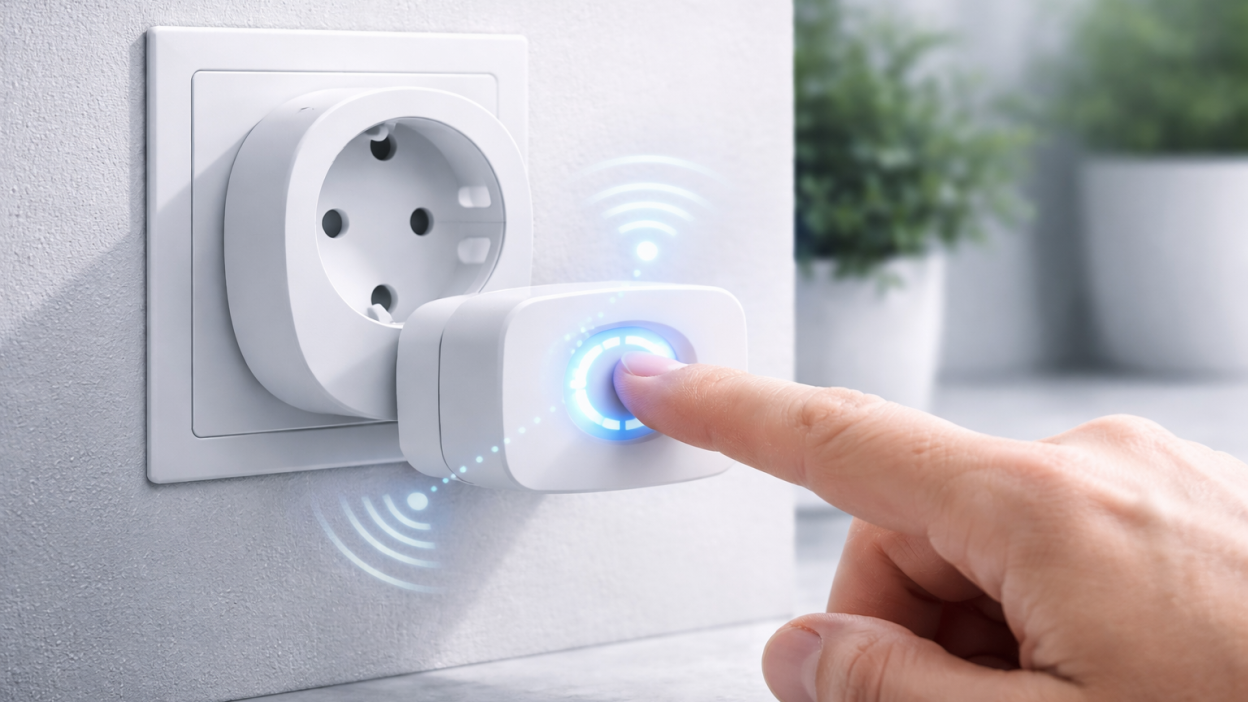
Most Tuya smart plugs have a single button on the side or front. This button is used for both power and reset.
Step 3. Hold the button
Press and hold the button for about 5–10 seconds.
Watch the LED indicator carefully.
Step 4. Wait for blinking light
The LED will start blinking rapidly. This means the device entered pairing mode.
If the light blinks slowly, you may need to hold the button again to switch modes.
Step 5. Add the device in the app
Open the Tuya Smart or Smart Life app and add a new device.
Make sure:
- you are connected to 2.4 GHz Wi-Fi
- you enter the correct Wi-Fi password
Fast blinking vs slow blinking
Many Tuya devices support two pairing modes:
- Fast blinking — EZ mode (standard pairing)
- Slow blinking — AP mode (manual connection)
If normal pairing fails, try switching to slow blinking mode and use AP mode in the app.
Common mistakes when resetting
Holding the button too short
If you release too early, the device will not enter reset mode.
Using wrong Wi-Fi network
Tuya devices usually do not support 5 GHz networks.
Not waiting for blinking indicator
The blinking LED is the key sign that reset was successful.
Trying to reconnect without removing device
Sometimes you must delete the old device from the app before adding it again.
What to do if reset does not work
If your Tuya smart plug does not reset properly, try this:
- unplug and plug it back in
- try holding the button longer (up to 15 seconds)
- check if the button is physically working
- try another power outlet
If the device still does not respond, it may be a hardware issue.
Real-world scenarios
Plug not connecting after reset
This is usually caused by wrong Wi-Fi band or password.
Plug resets but disappears again
This indicates unstable Wi-Fi or router issues.
Plug not blinking at all
This may indicate hardware failure or no power.
FAQ
How long should I hold the reset button?
Usually 5–10 seconds, depending on the model.
Do I need to delete the device before reset?
Not always, but it is recommended if reconnecting fails.
Can I reset without removing from app?
Yes, but re-adding the device may still be required.
Why is my plug not pairing after reset?
Most often due to 5 GHz Wi-Fi or incorrect setup process.
Conclusion
Resetting a Tuya smart plug is a simple but powerful troubleshooting step. It helps solve connection issues, pairing problems, and incorrect configurations.
However, reset should not be your first step every time. Always check power, Wi-Fi, and router stability first. If done correctly, reset can restore your device to full working condition within minutes.
You may also like: Tuya device offline — how to fix it, Why Tuya devices go offline, Tuya device not pairing — fix, Tuya Wi-Fi problems guide.