
Tuya Smart Plug Has Power But Shows Offline: Real Fixes
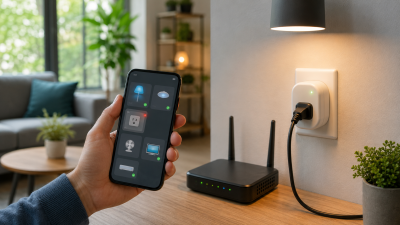
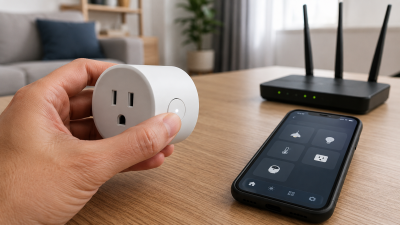
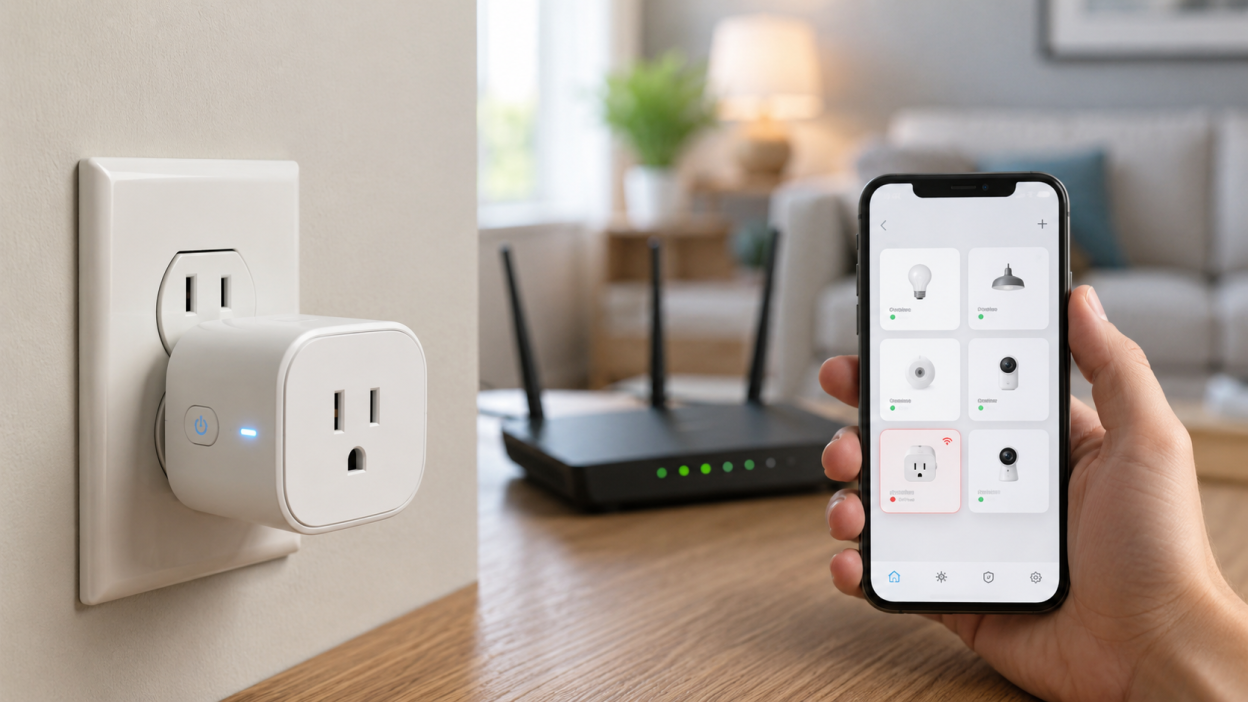
Your Tuya smart plug has power. The LED is on. The plug may even turn on and off manually. But in the Tuya Smart or Smart Life app, it still shows as offline.
This is one of the most confusing Tuya smart plug problems because the device does not look broken. In most cases, it is not broken. The plug is powered, but it cannot properly communicate with your Wi-Fi network, router, app, or Tuya cloud.
This guide explains why a Tuya smart plug can have power but still appear offline, how to find the real cause, and what to do before you reset or replace the device.
Quick answer
If your Tuya smart plug has power but shows offline, the most likely causes are weak 2.4 GHz Wi-Fi signal, failed reconnection after router restart, app status delay, router restrictions, or corrupted device pairing.
Start with a simple restart and Wi-Fi check. Do not factory reset the plug immediately unless basic troubleshooting fails.
Power does not mean connection
A smart plug can be powered and still offline. These are two different things.
Power means the device receives electricity. Online status means the plug can communicate with the Tuya platform through your router and internet connection.
So when the LED is on but the app shows offline, the plug is usually stuck somewhere between these two states: powered locally, but disconnected digitally.
Quick diagnosis table
| What you see | Most likely cause | First action |
|---|---|---|
| LED is on, app says offline | Wi-Fi or cloud connection issue | Restart the plug |
| Plug works manually but not in app | App or cloud sync problem | Refresh app and check router |
| Plug went offline after router restart | Failed reconnection | Restart plug after router is online |
| Plug connects then goes offline again | Weak Wi-Fi signal | Move closer to router temporarily |
| Plug offline after Wi-Fi password change | Saved credentials no longer work | Reset and re-add the plug |
Reason 1: the plug lost Wi-Fi connection
Most Tuya smart plugs use 2.4 GHz Wi-Fi. If the signal is weak or unstable, the plug may lose connection while still staying powered on.
This often happens when the plug is:
- far from the router
- behind furniture
- near thick walls
- plugged into an outlet close to the floor
- inside a garage, basement, or corner room
Move the plug closer to the router for testing. If it reconnects, the problem is not the plug itself. The problem is Wi-Fi coverage.
Reason 2: the router is online but the plug cannot reconnect
Your router may work perfectly for phones and laptops but still fail with IoT devices. Tuya smart plugs are usually more sensitive to router settings than regular devices.
Common router-related causes include:
- 2.4 GHz and 5 GHz combined under one network name
- AP isolation enabled
- MAC filtering
- guest network restrictions
- automatic device blocking
- too many connected devices
If several smart devices have similar problems, focus on the router before resetting each plug one by one.
Reason 3: the plug failed to reconnect after power or router restart
After a power outage or router reboot, the router and plug may start at different times. The plug may try to connect before the Wi-Fi network is fully ready.
If that first reconnection fails, some plugs stay offline until you restart them manually.
Try this order:
- Wait until the router is fully online
- Unplug the Tuya smart plug
- Wait 15 seconds
- Plug it back in
- Wait 60–90 seconds
- Refresh the app
This fixes many “powered but offline” cases without a full reset.
Reason 4: Smart Life or Tuya app status is delayed
Sometimes the plug reconnects successfully, but the app still shows an old offline status. This can happen after app cache issues, cloud delay, or temporary Tuya sync problems.
Before changing device settings, try:
- closing the app completely
- opening it again
- pulling down to refresh the device list
- checking the plug from another phone
- switching between mobile data and Wi-Fi on your phone
If the status updates later, the device was not the real problem.
Reason 5: the plug needs to be re-added
If the smart plug has saved outdated Wi-Fi details or broken pairing data, restarting may not be enough.
This usually happens after:
- changing Wi-Fi name
- changing Wi-Fi password
- replacing the router
- moving the plug to another home
- failed firmware update
In these cases, you may need to remove the plug from the app, reset it, and add it again.
Real-life scenario
Example: your Tuya smart plug is plugged into the wall, the LED is glowing, and the physical button turns the plug on and off. But the Smart Life app still says offline.
This usually means the plug is working electrically, but the app cannot reach it through the network. The correct first step is not replacing the plug. First, restart it, check 2.4 GHz Wi-Fi, and confirm the router is not blocking IoT devices.
Step-by-step fix
Step 1. Restart the smart plug
Unplug the smart plug from the outlet. Wait 10–15 seconds, then plug it back in.
Give it at least one minute to reconnect before opening the app again.
Step 2. Refresh the app
Close Tuya Smart or Smart Life completely. Reopen it and refresh the device list.
If the plug comes back online, the issue was temporary.
Step 3. Check 2.4 GHz Wi-Fi
Make sure your 2.4 GHz Wi-Fi network is active. If your router combines 2.4 GHz and 5 GHz, consider separating them temporarily during troubleshooting.
Step 4. Move the plug closer to the router
Test the plug in an outlet near the router. If it works there, your original location has weak signal.
Step 5. Restart the router
If multiple Tuya devices are affected, restart your router. Wait until it is fully online before checking the plug again.
Step 6. Re-add the plug if needed
If nothing works, remove the plug from the app, reset it, and add it again using the correct 2.4 GHz Wi-Fi network.
What not to do
Do not reset the plug again and again without checking your network. If the cause is weak Wi-Fi or router overload, the plug may reconnect after reset and then go offline again later.
Also avoid changing too many settings at once. If you restart the router, reset the plug, change Wi-Fi names, and reinstall the app all at the same time, it becomes harder to understand what actually fixed or caused the issue.
When the plug may be faulty
Most cases are network-related, but the plug can be faulty if:
- there is no LED at all
- the physical button does not work
- the plug overheats
- it never enters pairing mode
- it fails on multiple routers and outlets
If the plug cannot reset, cannot pair, and does not work reliably even near the router, replacement may be the practical solution.
How to prevent this issue
- Keep smart plugs within stable 2.4 GHz Wi-Fi range
- Use a reliable router for smart home devices
- Avoid isolated guest networks for Tuya plugs
- Do not change Wi-Fi name and password unless necessary
- Use Zigbee plugs for larger smart home setups
- Restart the plug after power outages if it does not reconnect
FAQ
Why does my Tuya smart plug have power but show offline?
Because power and network connection are separate. The plug may be powered but unable to communicate with your router, app, or Tuya cloud.
Should I reset the smart plug immediately?
No. First restart the plug, refresh the app, check 2.4 GHz Wi-Fi, and restart the router if needed.
Can a smart plug work manually but still be offline?
Yes. The physical button can work even when the plug is disconnected from the app.
Why does my Tuya smart plug go offline after router restart?
The plug may try to reconnect before the router is fully ready. Restarting the plug after the router is online often fixes it.
Is the plug broken if it shows offline?
Usually not. Most offline issues are caused by Wi-Fi, router settings, app sync, or cloud communication problems.
You may also like
- Tuya Device Offline But Internet Works: What It Really Means
- Tuya Smart Plug Won’t Connect to Wi-Fi: What Usually Goes Wrong
- Router Settings That Break Tuya Smart Devices
- Tuya Devices Keep Disconnecting? Your Wi-Fi Setup May Be the Problem