
How to setup Tuya smart plug — complete beginner guide
If you just bought a Tuya smart plug and want to get it working quickly, this guide will walk you through the entire setup process step by step. Even if you’ve never used a smart home device before, you’ll be able to connect it without problems.
Most setup issues happen because of small mistakes — wrong Wi-Fi band, incorrect pairing mode, or skipped steps. This guide is built to avoid all of that.
What you need before setup
Before you start, make sure you have everything ready:
- Tuya smart plug
- Smartphone (Android or iOS)
- Tuya Smart or Smart Life app
- Wi-Fi network (2.4 GHz)
Without 2.4 GHz Wi-Fi, most Tuya devices will not connect.
Quick answer
To setup a Tuya smart plug:
- install Tuya Smart or Smart Life app
- plug the device into power
- hold the button until LED blinks
- add device in the app
- connect to Wi-Fi
Now let’s go step by step.
Step-by-step setup process
Step 1. Install the app
Download one of these apps:
- Tuya Smart
- Smart Life
Both apps work the same way because they use the same platform.
Step 2. Create account
Open the app and create an account using:
- phone number
Log in after registration.
Step 3. Plug in the device
Insert the smart plug into a power outlet.
The LED indicator should turn on.
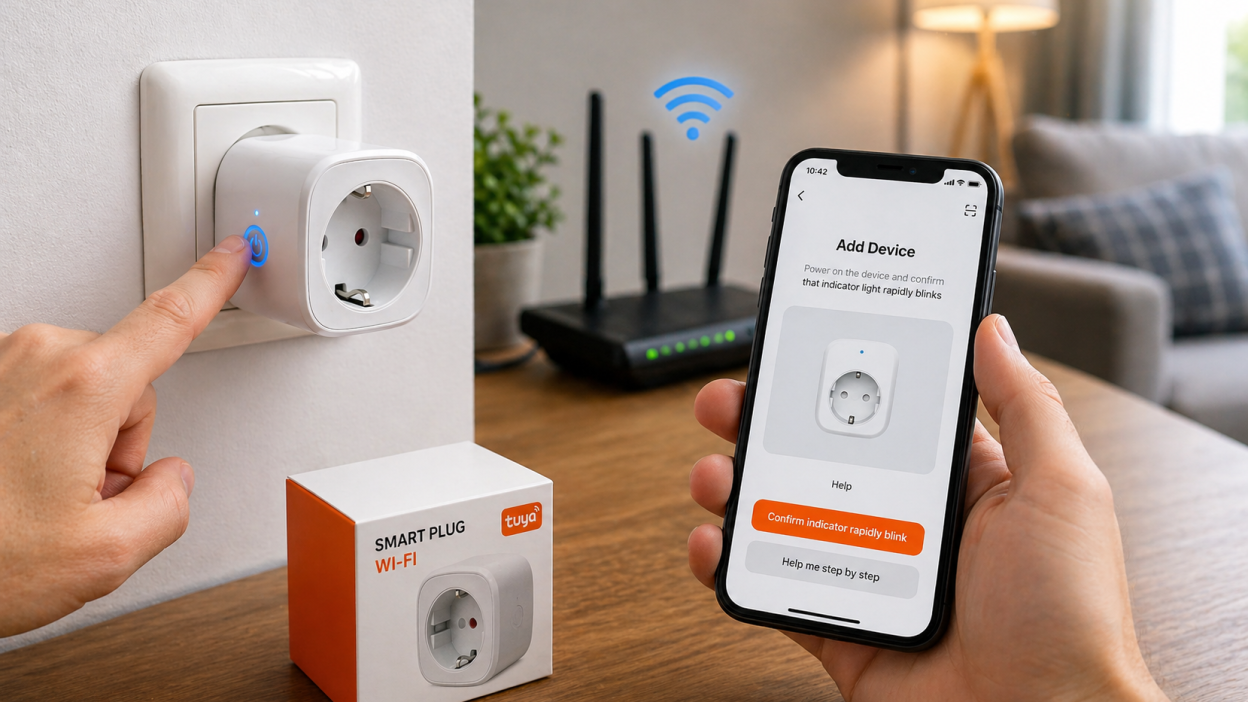
Step 4. Enter pairing mode
Press and hold the button on the plug for 5–10 seconds.
The LED should start blinking rapidly.
This means the device is ready to connect.
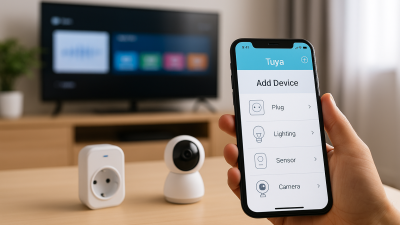
Step 5. Add device in the app
In the app:
- tap “Add Device”
- select “Socket (Wi-Fi)”
- confirm blinking indicator
Step 6. Connect to Wi-Fi
Enter your Wi-Fi password.
Important:
- use 2.4 GHz network
- stay close to router
The app will connect the device automatically.
Step 7. Finish setup
Once connected:
- give your device a name
- assign it to a room
Your smart plug is now ready to use.
Common setup problems
Device not found
Make sure:
- LED is blinking
- you selected correct device type
Connection fails
Check:
- Wi-Fi is 2.4 GHz
- password is correct
- signal is strong
Device connects but goes offline
This usually means weak Wi-Fi or router issue.
EZ mode vs AP mode
Tuya devices support two pairing methods:
- EZ mode — fast blinking (default)
- AP mode — slow blinking
If EZ mode fails, switch to AP mode and connect manually.
Tips for stable setup
- keep device close to router during setup
- avoid crowded Wi-Fi networks
- use reliable router
- do not rush pairing process
Real-world scenarios
First-time setup fails
Usually caused by 5 GHz Wi-Fi.
Device connects but disappears
This indicates unstable network.
App cannot find device
Most often wrong pairing mode.
FAQ
Do I need Tuya or Smart Life?
Both apps work the same. You can use either.
Why does setup fail on 5 GHz?
Most Tuya devices support only 2.4 GHz.
How long does setup take?
Usually 1–2 minutes.
Can I control plug remotely?
Yes, once connected to the internet.
Conclusion
Setting up a Tuya smart plug is simple when done correctly. Most issues happen because of wrong Wi-Fi settings or incorrect pairing steps.
If you follow this guide carefully, you can connect your device in minutes and avoid common mistakes.
You may also like: Tuya device not pairing — fix, How to reset Tuya smart plug, Tuya device offline guide, Tuya automation basics.