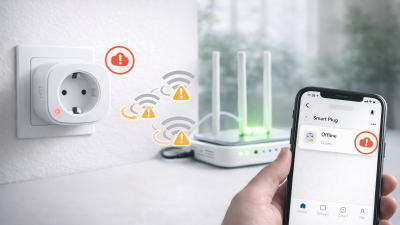

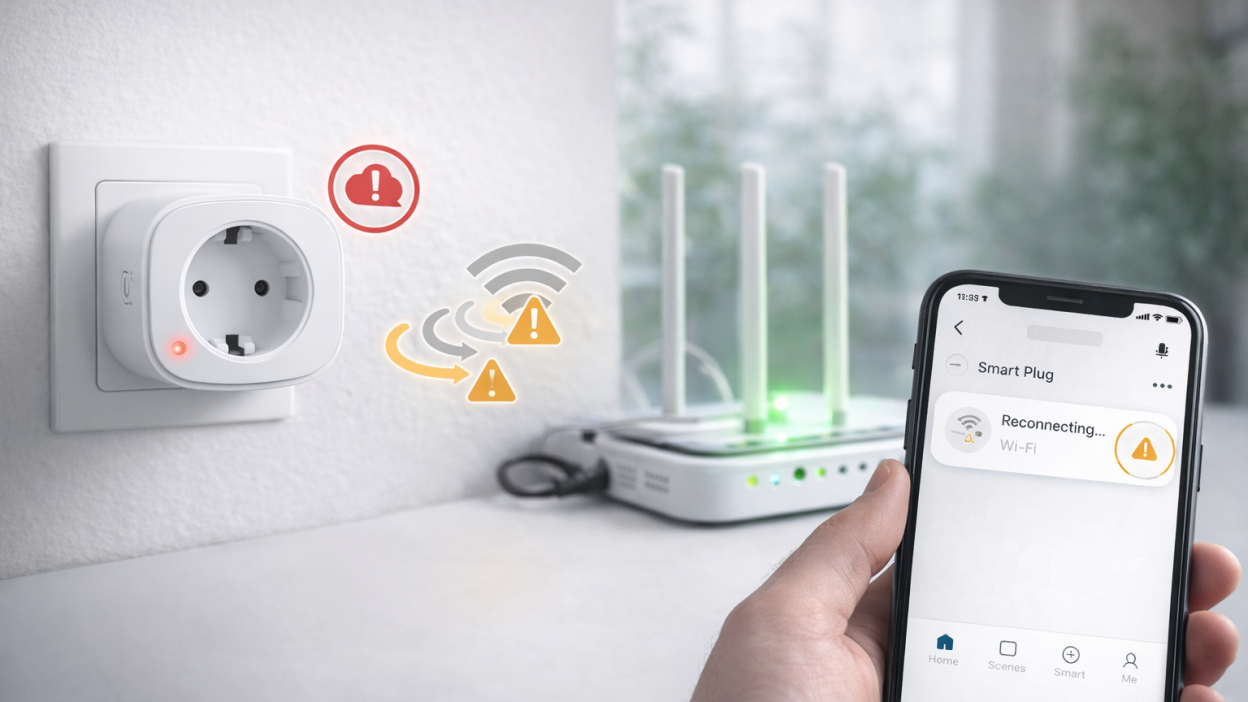
One of the most frustrating situations in a smart home is when your Tuya device goes offline right after a power outage. Everything seems to be working again — lights are on, router is running — but in the Tuya or Smart Life app the device still shows as offline.
This problem is very common and does not necessarily mean your device is broken. In most cases, it happens because the device fails to reconnect properly after the power is restored.
In this guide, you will learn exactly why Tuya devices go offline after a power outage and how to fix it step by step.
Why Tuya devices go offline after power outage
At first glance, it looks strange: power comes back, but the device stays offline. The real reason is usually related to how devices reconnect to the network.
Router and device start at different times
After a power outage, your Tuya device often powers on faster than your router. The device tries to connect to Wi-Fi, but the network is not ready yet.
As a result, the connection fails, and the device may not retry properly.
Wi-Fi network not fully initialized
Even when the router is turned on, it may take time to fully restore internet connectivity. During this period, devices may attempt to connect and fail.
Device firmware limitations
Some budget Tuya devices do not handle reconnection well. If they fail once, they may stay offline until manually restarted.
Temporary cloud sync issue
Sometimes the device reconnects, but the Tuya app still shows it as offline due to a delay in cloud synchronization.
Quick fix: what to do immediately
If your Tuya device is offline after a power outage, follow this simple checklist first:
- Wait 2–3 minutes after power is restored
- Restart the router
- Restart the device
- Refresh the Tuya or Smart Life app
In many cases, this resolves the issue quickly.
Step-by-step: how to fix Tuya device offline after outage
Step 1. Wait for network stabilization
Do not rush to reset anything immediately. After power returns, give your network at least 2–3 minutes to fully stabilize.
Many devices reconnect automatically if given enough time.
Step 2. Restart the router
If the device remains offline, restart your router manually. This ensures that Wi-Fi and internet connection are fully restored.
Wait until all router indicators show stable operation.
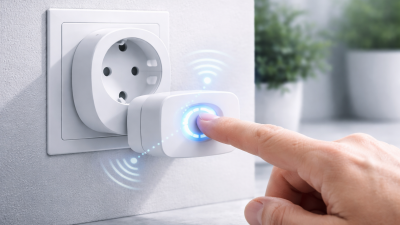
Step 3. Restart the Tuya device
Power-cycle the device:
- Unplug it or turn off power
- Wait 10–15 seconds
- Turn it back on
This forces the device to reconnect to Wi-Fi properly.
Step 4. Check Wi-Fi connection
Make sure your 2.4 GHz network is active and stable. If your router uses combined bands (2.4 + 5 GHz), reconnection may fail.
Also check that the signal is strong enough where the device is installed.
Step 5. Re-add the device
If the device still does not reconnect:
- Remove the device from the Tuya or Smart Life app
- Put the device into pairing mode
- Add it again to your network
This fixes issues caused by lost credentials or broken sync.
Step 6. Reset the device (if needed)
If nothing works, perform a factory reset. Hold the reset button for 5–10 seconds until the LED starts blinking.
Then reconnect the device as new.
How to prevent this problem in the future
If your Tuya devices often go offline after power outages, it is better to fix the root cause rather than repeat manual restarts every time.
Use a stable router
A reliable router handles reconnections better after power interruptions. Cheap routers often fail to restore connections properly.
Install a UPS for your router
A small uninterruptible power supply (UPS) can keep your router running during short outages.
This prevents the situation where devices start before the network is ready.
Avoid weak signal zones
If the device is installed in a location with weak Wi-Fi signal, reconnection after power loss becomes even harder.
Improve signal strength or relocate the device if possible.
Consider Zigbee devices
Zigbee devices are often more stable because they rely on a mesh network and a hub, not direct Wi-Fi connection.
They usually recover faster after power interruptions.
Real-world scenarios
All devices went offline after outage
This usually indicates a router issue. Restarting the router solves the problem in most cases.
Only one device is offline
This typically means weak signal or a device-specific issue. Restarting that device is usually enough.
Devices reconnect but go offline again
This points to unstable Wi-Fi or router overload. Improving network quality is the long-term solution.
FAQ
Why do Tuya devices not reconnect automatically?
Some devices fail to reconnect if Wi-Fi is not available at the exact moment they power on.
Should I reset the device after every outage?
No. Reset should be used only if normal reconnection methods fail.
Can a UPS solve the problem?
Yes. Keeping the router powered during outages prevents many reconnection issues.
Are Zigbee devices better in this situation?
In many cases yes, because they rely less on direct Wi-Fi and handle reconnection more efficiently.
Conclusion
If your Tuya device goes offline after a power outage, the problem is usually related to network timing, not the device itself. The router and device often restart in the wrong order, causing connection failure.
The most effective fixes are restarting the router, restarting the device, and ensuring stable Wi-Fi. For long-term stability, improving your network setup or using Zigbee devices can significantly reduce these issues.
You may also like: Tuya device offline — how to fix it step by step, Why Tuya devices go offline and how to prevent it, Tuya device keeps going offline — real fixes, Zigbee Tuya device offline troubleshooting guide.