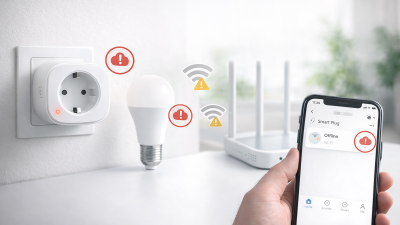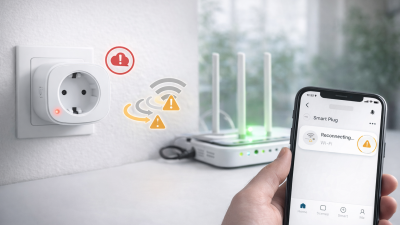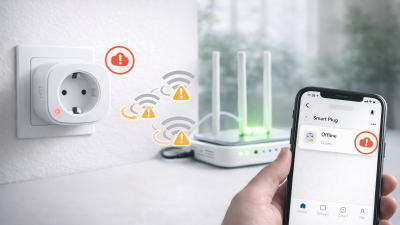

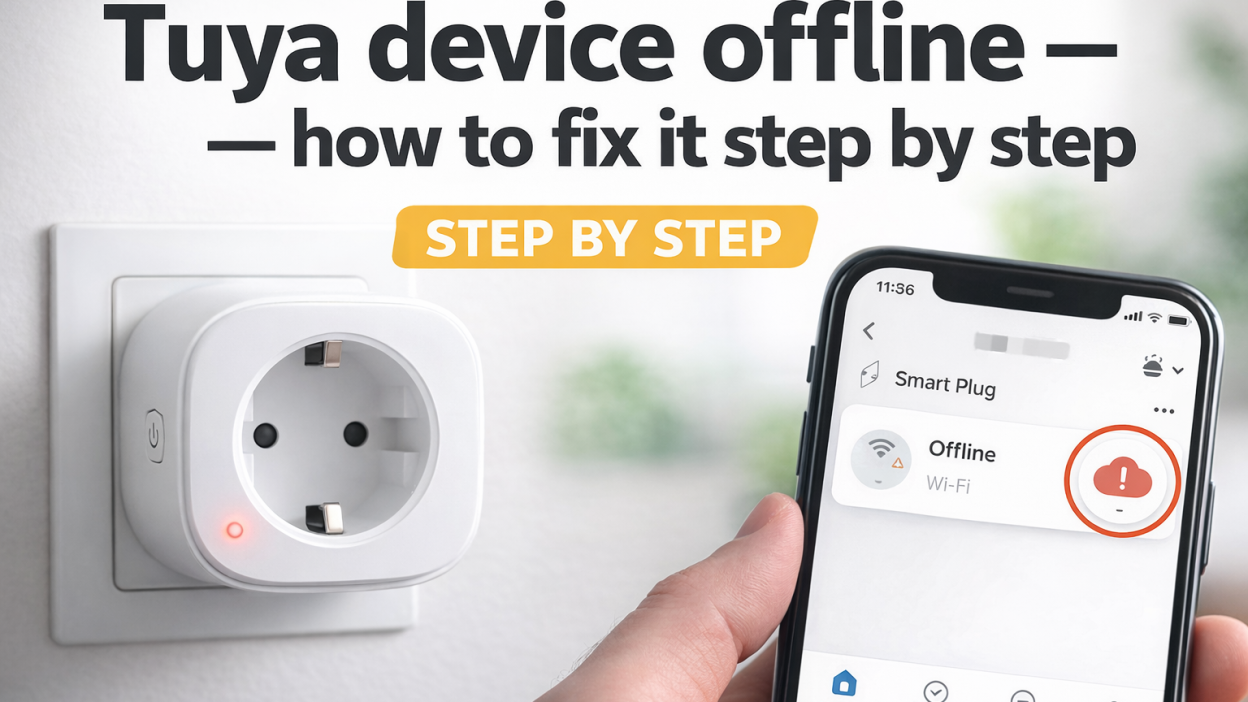
If your Tuya smart device suddenly shows as offline in the Tuya Smart or Smart Life app, this usually means the device has lost connection with the network or the cloud. This is one of the most common issues in the Tuya ecosystem, especially with smart plugs, bulbs, switches, and Wi-Fi sensors. The good news is that in most cases the problem can be fixed without replacing the device.
In this guide, you will learn what the “device offline” status means, why it happens, how to fix it step by step, and what to do to prevent the same issue in the future. This article is written for regular Tuya users who want a practical solution, not vague theory.
What does “Tuya device offline” mean?
When a Tuya device appears offline, it means the device is no longer communicating properly with the Tuya platform. In practice, this usually happens because the device lost access to Wi-Fi, failed to reconnect after a power interruption, or stopped syncing with the app.
An offline status does not always mean the device is broken. In many cases, the device still has power, but it cannot reach your router or the Tuya cloud. That is why the first goal is to check whether the issue is caused by the local network, the device itself, or the app.
Main reasons why a Tuya device goes offline
1. Wi-Fi connection problems
Most Tuya devices depend on a stable 2.4 GHz Wi-Fi connection. If the signal is weak, unstable, or overloaded, the device may disconnect and remain offline in the app.
2. Router restart or router settings changes
If you recently changed your Wi-Fi name, password, router, or network settings, the device may no longer be able to connect using the old saved credentials.
3. Power outage or sudden restart
After a power outage, some Tuya devices do not reconnect correctly. This is especially common with budget smart plugs and bulbs.
4. Device firmware glitch
Sometimes the device itself freezes or gets stuck after an update, reboot, or unstable power cycle. In that case, a restart or reset may be required.
5. App sync or cloud issue
In some situations, the problem is not in your home at all. The Tuya app or cloud service may temporarily fail to update the device status correctly.
Quick answer: what to do first
If your Tuya device is offline, start with these basic actions:
- Check if the device has power
- Restart the device
- Restart your router
- Confirm that 2.4 GHz Wi-Fi is working
- Open the app and refresh the device status
- Re-add the device if needed
In many cases, this is enough to restore the connection.
How to fix a Tuya device offline step by step
Step 1. Check if the device has power
Before changing settings in the app, make sure the problem is not physical. Look at the device indicator. If it is a smart plug, check whether the LED is on. If it is a smart bulb, confirm that it has power and responds normally. If it is a switch or relay, make sure the circuit is active.
If the device has no power, it will always show as offline in the app.
Step 2. Restart the Tuya device
Power-cycle the device. Unplug it or turn off power for about 10 to 15 seconds, then turn it back on. Wait one or two minutes and check the app again.
This simple step solves many temporary connection bugs, especially after a power flicker or router reconnection.
Step 3. Restart your router
Router instability is one of the biggest reasons Tuya devices go offline. Reboot the router fully, wait until Wi-Fi is stable again, then reopen the app.
If several Tuya devices went offline at the same time, the router is the first thing to suspect.
Step 4. Make sure the device uses 2.4 GHz Wi-Fi
Many Tuya Wi-Fi devices support only 2.4 GHz networks. If your router uses band steering or combines 2.4 GHz and 5 GHz under one name, pairing and reconnection may fail.
Check these points:
- The 2.4 GHz network is enabled
- The router did not switch to a different SSID
- The password has not changed
- The signal is strong enough where the device is installed
If needed, temporarily separate 2.4 GHz and 5 GHz Wi-Fi networks while troubleshooting.
Step 5. Refresh the Tuya or Smart Life app
Close the app completely and open it again. Sometimes the offline label remains visible because the app did not update the status correctly. You can also try logging out and back in.
If you use Smart Life instead of Tuya Smart, the same logic applies because both platforms are closely related.
Step 6. Remove and re-add the device
If the device still stays offline, remove it from the app and add it again.
Typical process:
- Delete the offline device from the app
- Put the device into pairing mode
- Add it again through Tuya Smart or Smart Life
- Connect it to the correct 2.4 GHz network
This often fixes issues caused by broken sync or incorrect stored credentials.
Step 7. Factory reset the device
If re-adding does not work, do a factory reset. For most Tuya smart plugs and bulbs, this means holding the power or reset button for 5 to 10 seconds until the LED starts blinking quickly.
After that, add the device as if it were new.
Be aware that a reset removes previous settings, automations, and scenes linked to that device.
What to do if the Tuya device keeps going offline
If the device reconnects but later becomes offline again, the issue is usually related to Wi-Fi quality, router overload, or poor placement.
Improve signal strength
If the device is installed far from the router, behind thick walls, or inside a metal box, the Wi-Fi signal may be too weak for stable operation.
Possible solutions:
- Move the router closer
- Use a mesh Wi-Fi system
- Install a better access point
- Avoid placing Tuya devices in signal dead zones
Reduce router overload
Cheap routers often struggle when many IoT devices are connected at the same time. If you have many smart plugs, bulbs, sensors, and cameras, your router may not handle them reliably.
In that case, upgrading the router can improve Tuya stability more than resetting devices again and again.
Check advanced router settings
Some routers have features that interfere with smart home devices, such as:
- AP isolation
- strict firewall rules
- aggressive smart connect mode
- automatic device blocking
- guest network isolation
If your Tuya devices disconnect often, review these settings.
Tuya device offline after power outage
This is a very common situation. After electricity comes back, the router and Tuya devices may not reconnect in the correct order. For example, the smart plug powers on before the router is fully online, then fails to reconnect automatically.
To fix this:
- Wait 2 to 3 minutes after power returns
- Restart the router manually if needed
- Restart the Tuya device
- Check app status again
If this happens often in your home, consider using more stable networking equipment or switching some critical devices to Zigbee instead of Wi-Fi.
Wi-Fi Tuya vs Zigbee Tuya stability
If your main goal is reliability, Zigbee Tuya devices are often more stable than Wi-Fi versions. Wi-Fi devices depend directly on your router and internet connection, while Zigbee devices communicate through a hub and a mesh network.
Zigbee can be a better choice if:
- you have many devices in one home
- your Wi-Fi network is already crowded
- you want better battery life for sensors
- you want fewer random disconnects
That does not mean Wi-Fi Tuya devices are bad, but they require a better network environment.
How to prevent Tuya devices from going offline
- Use a stable router, not the cheapest model available
- Keep 2.4 GHz Wi-Fi enabled for smart home devices
- Avoid changing Wi-Fi name and password too often
- Install devices where signal strength is good
- Update app and device firmware when needed
- Do not overload one low-end router with too many IoT devices
Prevention matters because repeated offline issues are usually a network problem, not a single device problem.
FAQ
Why is my Tuya device offline but still has power?
This usually means the device is powered but cannot connect to Wi-Fi, the router, or the Tuya cloud.
Do Tuya devices work only on 2.4 GHz?
Most Wi-Fi Tuya devices use 2.4 GHz only. Many pairing and offline issues happen because users try to connect them through 5 GHz.
Should I reset the device immediately?
No. First check power, router, Wi-Fi, and app sync. Reset should be one of the later steps, not the first one.
Why does my Tuya device go offline after every power outage?
Usually because the device powers back on before the router fully restores internet access, or because the router itself becomes unstable after outages.
Is Smart Life the same as Tuya for troubleshooting?
For most users, yes. The troubleshooting logic is nearly identical because the apps are based on the same ecosystem.
Conclusion
If your Tuya device is offline, do not assume the device is dead. In most cases, the cause is simple: unstable Wi-Fi, router problems, power interruption, or app sync issues. Start with the basic checks, then move to re-adding or resetting the device only if necessary.
The most effective long-term fix is not repeated resetting, but creating a more stable smart home network. A good router, strong 2.4 GHz coverage, and proper device placement will solve more Tuya problems than any quick app trick.
If you are building a larger smart home, it is also worth comparing Wi-Fi and Zigbee devices to reduce random offline issues over time.
You may also like: Why Tuya devices go offline and how to prevent it, Tuya device offline after power outage, Tuya device keeps going offline — real fixes, Zigbee Tuya device offline — troubleshooting guide.