
Your internet works. Your phone is connected to Wi-Fi. Other devices in the house are online. But one Tuya device still shows as offline in the Tuya Smart or Smart Life app.
This situation is confusing because it looks like the internet is not the problem. In many cases, that is true. A Tuya device can appear offline even when your home internet is working normally. The real issue may be the device connection, router settings, app sync, or Tuya cloud communication.
This guide explains what it really means when a Tuya device is offline but the internet works, how to diagnose the cause, and what to check before resetting the device.
Quick answer
If your Tuya device is offline but your internet works, the most likely causes are weak 2.4 GHz Wi-Fi signal, router blocking the device, app status delay, Tuya cloud sync issue, or the device failing to reconnect after a restart.
Do not reset the device immediately. First, check whether the issue is local, app-related, or cloud-related. Reset should be the last step, not the first one.
What this problem usually means
When a Tuya device appears offline, it does not always mean your whole internet connection is down. It only means the app cannot confirm communication with that specific device through the Tuya platform.
There are three possible layers where the problem can happen:
- the device cannot connect to your router
- the router does not allow the device to reach the internet
- the Tuya app or cloud does not update the device status correctly
This is why your phone, laptop, or TV may work normally while a smart plug, bulb, sensor, or switch still appears offline.
Quick diagnosis: device, router, app, or cloud?
| Symptom | Most likely cause | What to check first |
|---|---|---|
| Only one Tuya device is offline | Device signal or firmware issue | Restart that device |
| Several Tuya devices are offline | Router or Tuya cloud issue | Restart router and check app later |
| Device works manually but not in app | App/cloud communication issue | Refresh app and check Wi-Fi |
| Device goes offline after router reboot | Reconnect timing issue | Restart device after router is fully online |
| Device disappears from app during setup | Pairing or 2.4 GHz Wi-Fi problem | Check Wi-Fi band and pairing mode |
Reason 1: the device lost 2.4 GHz Wi-Fi connection
Most Tuya Wi-Fi devices use 2.4 GHz Wi-Fi. Your internet may work perfectly on your phone because your phone is connected to 5 GHz, while the Tuya device depends on a weaker 2.4 GHz signal.
This is common when the device is installed far from the router, behind thick walls, near metal surfaces, or in a room with poor Wi-Fi coverage.
What to check:
- is the device far from the router?
- does the 2.4 GHz network still exist?
- did you recently change Wi-Fi settings?
- does the device reconnect if moved closer to the router?
If the device works closer to the router, the problem is signal quality, not Tuya itself.
Reason 2: your router is online but blocking the device
A router can provide internet to phones and computers while still causing problems for smart home devices. Some router settings interfere with Tuya devices, especially low-power IoT devices.
Settings that may cause problems include:
- AP isolation
- MAC filtering
- guest network isolation
- automatic device blocking
- aggressive firewall rules
- combined 2.4 GHz and 5 GHz band steering
In real homes, router settings are one of the most overlooked reasons why a Tuya device appears offline while everything else works.
Reason 3: the app status is delayed
Sometimes the device is actually connected, but the Tuya Smart or Smart Life app still shows the old offline status. This can happen after router restart, power outage, app cache issues, or temporary cloud delay.
Before resetting anything, try this:
- close the app completely
- open it again
- pull down to refresh device list
- check the same device from another phone if possible
If the device updates after refresh, the problem was app status sync, not the device.
Reason 4: the device failed to reconnect after a restart
After a power outage or router reboot, a Tuya device may try to reconnect before the router is fully ready. If this first attempt fails, some devices do not recover properly until you restart them manually.
This is especially common with smart plugs, bulbs, and cheaper Wi-Fi switches.
The correct order is:
- wait until the router is fully online
- restart the Tuya device
- wait 60–90 seconds
- check the app again
Do not factory reset the device in this situation unless it still refuses to reconnect.
Reason 5: Tuya cloud has a temporary sync issue
Tuya devices often rely on cloud communication. That means your local internet can work, but the device may still appear offline if the Tuya cloud or app service has a temporary delay.
This is more likely when several devices from different rooms suddenly go offline at the same time, especially if your Wi-Fi and router are working normally.
In that case, wait 10–20 minutes before changing settings. Sometimes the best fix is simply not touching anything too early.
Real-life scenario
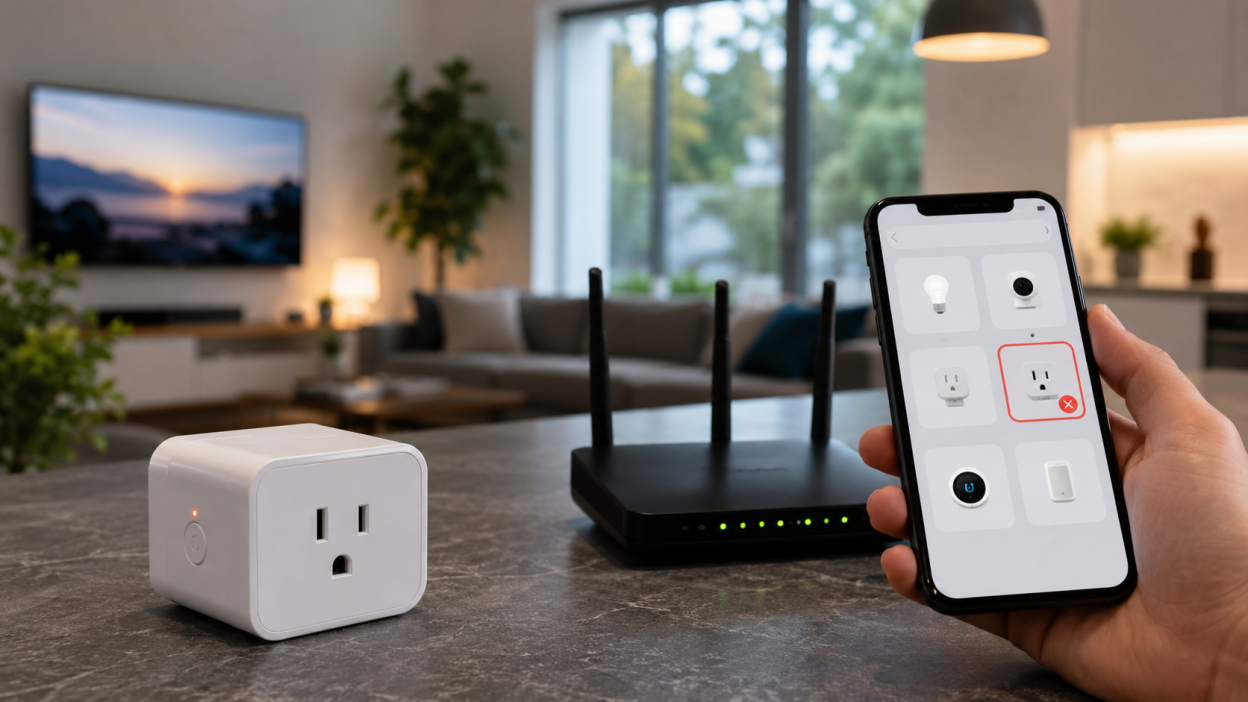
Imagine this: your Tuya smart plug has power, the LED is on, and the router is working. Your phone opens websites normally. But the Smart Life app says the plug is offline.
In this case, the plug is not necessarily broken. It may have power but no stable 2.4 GHz connection. Or it may be connected to the router but unable to sync with the Tuya cloud. The right move is to restart the plug first, not delete it from the app immediately.
What to do first
Use this simple checklist before doing a reset:
- restart the Tuya device
- restart the router if several devices are affected
- check 2.4 GHz Wi-Fi
- move the device closer to the router temporarily
- refresh the Tuya Smart or Smart Life app
- check if other Tuya devices are also offline
If one device is affected, focus on that device and its signal. If many devices are affected, focus on the router or Tuya cloud.
What not to do
Do not factory reset the device immediately. This is one of the most common mistakes.
A reset removes the device from your setup and may break automations, schedules, rooms, and scenes. If the real problem is Wi-Fi or router stability, the device may go offline again even after reset.
Reset only if the device cannot reconnect after basic troubleshooting.
When you should reset the device
Factory reset makes sense only if:
- the device does not reconnect after restart
- the Wi-Fi password or router was changed
- the device cannot be controlled manually or from the app
- the device is stuck in pairing or offline state
- you already checked Wi-Fi, router, and app sync
If you are not sure, restart first, reset later.
How to prevent this problem
To reduce offline issues in the future:
- use a stable router
- keep 2.4 GHz Wi-Fi enabled
- avoid placing devices in weak signal zones
- do not use isolated guest networks for Tuya devices
- avoid changing Wi-Fi name and password too often
- consider Zigbee devices for larger smart homes
Most Tuya offline issues are easier to prevent with a stable network than to fix repeatedly through resets.
FAQ
Why is my Tuya device offline if my internet works?
Because the problem may affect only that specific device, its 2.4 GHz Wi-Fi connection, router access, app sync, or Tuya cloud communication.
Should I reset my Tuya device immediately?
No. First restart the device, check Wi-Fi, refresh the app, and restart the router if needed. Reset should be the last step.
Can Tuya devices go offline because of router settings?
Yes. AP isolation, guest network restrictions, firewall rules, and band steering can cause Tuya devices to appear offline.
Why does only one Tuya device show offline?
Usually because that device has weak signal, firmware glitch, power issue, or failed reconnection.
Why do several Tuya devices go offline at once?
This usually points to a router problem, internet interruption, or temporary Tuya cloud issue.
You may also like
- Tuya Smart Plug Has Power But Shows Offline: Real Fixes
- Router Settings That Break Tuya Smart Devices
- Tuya Device Won’t Reset: Why the Light Does Not Blink
- Tuya Devices Keep Disconnecting? Your Wi-Fi Setup May Be the Problem