
How to reset Tuya smart bulb — step-by-step guide
If your Tuya smart bulb is not responding, not connecting to Wi-Fi, or showing as offline in the app, resetting the bulb is often the fastest way to fix the issue. However, the reset process for smart bulbs is different from plugs and switches, and many users get it wrong.
In this guide, you will learn how to properly reset a Tuya smart bulb, when you should do it, and how to avoid common mistakes.
When you should reset a Tuya smart bulb
You do not need to reset your bulb every time it disconnects. Reset is only necessary in specific cases:
- bulb is not connecting to Wi-Fi
- bulb is not pairing with the app
- device shows offline and cannot reconnect
- you changed Wi-Fi network
- bulb behaves incorrectly
If the issue is temporary, try restarting the bulb first.
What happens during reset
When you reset a Tuya smart bulb:
- all Wi-Fi settings are erased
- the bulb is removed from your account
- automations and scenes are deleted
- the device returns to factory settings
After reset, you must reconnect the bulb as a new device.
Quick answer
To reset a Tuya smart bulb:
- turn the bulb ON and OFF 3–5 times in a row
- wait until the bulb starts blinking rapidly
- open the Tuya or Smart Life app
- add the device again
This is the most common reset method for Tuya bulbs.
Step-by-step reset process
Step 1. Turn the bulb on
Make sure the bulb is powered and working normally.
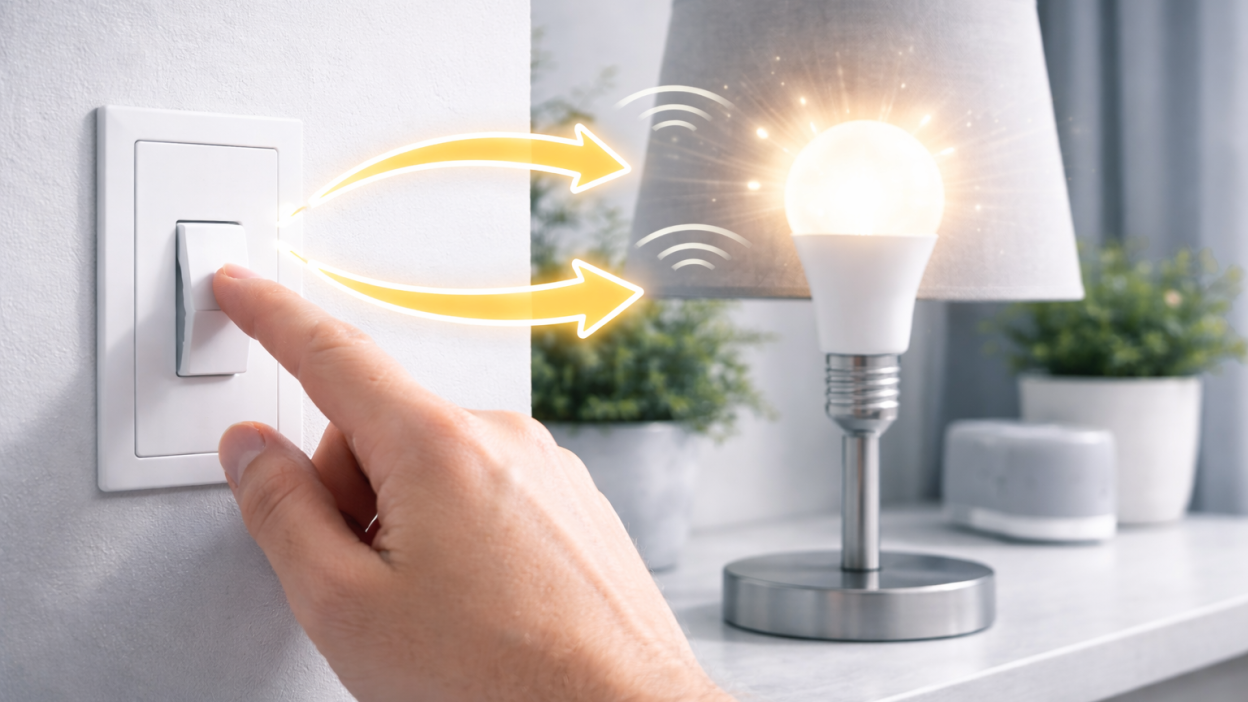
Step 2. Toggle power repeatedly
Turn the bulb OFF and ON multiple times:
- OFF → ON
- OFF → ON
- repeat 3 to 5 times
Do this quickly but not too fast. Each cycle should take about 1 second.
Step 3. Watch for blinking
After several cycles, the bulb should start blinking rapidly.
This indicates that the bulb has entered pairing mode.
Step 4. Add the bulb in the app
Open the Tuya Smart or Smart Life app and add a new device.
Make sure:
- you are connected to 2.4 GHz Wi-Fi
- you enter the correct password
Fast blinking vs slow blinking
Tuya bulbs may support two pairing modes:
- Fast blinking — EZ mode (standard)
- Slow blinking — AP mode
If normal pairing fails, switch to slow blinking mode and use AP mode in the app.
Common mistakes
Switching too fast or too slow
The timing matters. If done incorrectly, the bulb will not enter reset mode.
Using wall switch incorrectly
You must use the physical power switch, not the app.
Wrong Wi-Fi band
Most Tuya bulbs do not support 5 GHz networks.
Not waiting for blinking
The blinking light is the only confirmation that reset worked.
What to do if reset does not work
- try more ON/OFF cycles
- slow down the timing
- use another lamp or socket
- restart your router
If the bulb never blinks, it may be faulty.
Real-world scenarios
Bulb not blinking after reset
Usually caused by incorrect timing or faulty switch.
Bulb connects but goes offline
This is a Wi-Fi issue, not a reset issue.
Bulb pairs but does not respond
This may indicate firmware or network problem.
FAQ
How many times should I switch the bulb?
Usually 3–5 times, depending on the model.
Why is my bulb not entering pairing mode?
Most often due to incorrect timing.
Do all Tuya bulbs reset the same way?
Most follow this method, but some models may differ slightly.
Can I reset the bulb from the app?
No, reset requires physical power cycling.
Conclusion
Resetting a Tuya smart bulb is simple once you know the correct method. The key is proper ON/OFF timing and watching for the blinking indicator.
In most cases, reset solves pairing and connection problems quickly. However, if issues continue after reset, the real cause is usually Wi-Fi instability or router configuration.
You may also like: How to reset Tuya smart plug, Tuya device offline — how to fix it, Tuya device not pairing — fix, Tuya Wi-Fi problems guide.